Configuring Keap integration with Dark Web ID
This guide is intended for users seeking to enable the integration of Dark Web ID with Keap. This feature is available exclusively to users holding the Partner Admin role. Upon successful integration, managed service providers (MSPs) can optimize the live data search process, enabling prospective clients to request scans and facilitating the prospecting process. Below, you will find a detailed step-by-step process for integration.
Step 1: Log in to Dark Web ID
-
Access your Dark Web ID account.
-
Select Integrations from the sidebar navigation menu.

-
Click the KEAP tab.
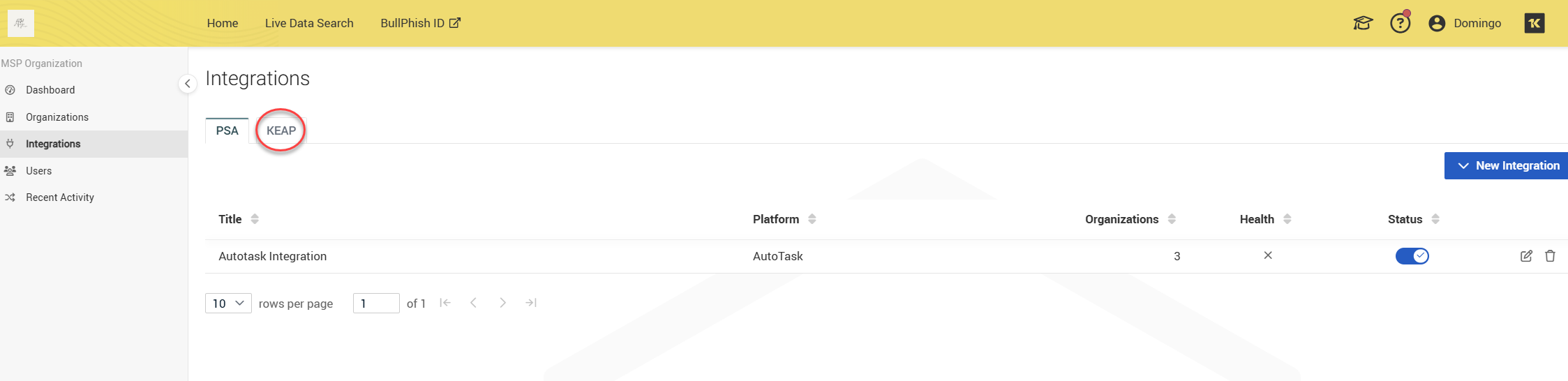
-
Proceed by selecting Connect Integration.

Step 2: Log in to Keap
At this stage, you will be prompted to log in to your Keap account in order to grant access to the integration.
Step 3: Approve integration access
You will receive a request to authorize access for the integration. Please select the application you wish to enable for Dark Web ID access and click Allow.
Upon registration of your integration, your Dark Web ID API Authorization Key will be displayed. Should you need to revoke the existing API key, you may generate a new key at any time by utilizing the refresh icon.
Step 4: Configure your Keap automation
With a successful connection established, your Dark Web ID API Authorization Key will be visible. This key is necessary for configuring the HTTP POST step within your Keap automation.
- Navigate back to the Keap dashboard and click Automation followed by Advance Automation to initiate the setup of new automation.
- Provide your campaign name and category.
- Create a sequence by selecting View and edit.
- Double-click the HTTP POST to begin configuration.
- Complete the Dark Web ID Authorization data as outlined in the Integration Instructions for the HTTP POST step in your campaign.
The integration process is now complete. You are now able to trigger reports from the Keap platform. Should you wish to terminate the connection, please select Disconnect Integration to deactivate the current integration with Keap.


