"Whoops looks like something went wrong, try later" error when syncing Dark Web ID with Microsoft Entra ID
The Whoops looks like something went wrong, try later error when syncing Dark Web ID with Microsoft Entra ID usually indicates an issue with connectivity or the credentials used for the integration.
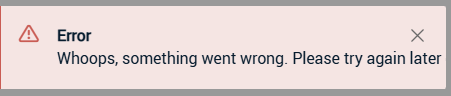
The following troubleshooting procedures address the most common causes for this error:
-
Verify credentials and permissions: This is the most likely cause. Double-check the Client Secret, Client ID, and Tenant ID entered in the Dark Web ID portal. Ensure the service principal (application registration) has the necessary permissions to read directory data in Microsoft Entra ID.
-
Check client secret expiration: Client secrets have an expiration date. If the secret has expired, generate a new one in the Microsoft Entra admin center under App registrations > Certificates & secrets and update the Dark Web ID portal.
-
Avoid the Custom Domain field: A common pitfall is entering data in the Custom Domain field in Dark Web ID. This will cause the integration to fail, so ensure this field is empty.
-
Network and proxy settings: The server where the Dark Web ID integration runs needs outbound internet connectivity to Microsoft Entra ID endpoints (ports 80 and 443). If you use a proxy, ensure it's configured correctly to allow web requests to Microsoft domains.
-
Check for service outages: Occasionally, the issue might be due to a temporary service outage on either the Kaseya or Microsoft Azure side. Check the respective status pages to confirm all services are operational.
-
Review Microsoft Entra ID logs: Check the sign-in and audit logs for the application registration in the Microsoft Entra admin center. This can provide more specific error messages, such as authentication failures or permission errors, that explain why the sync is failing.
Advanced troubleshooting
-
Restart synchronization: If the initial configuration seemed correct, sometimes simply restarting the sync process can help. This might involve removing and re-adding the directory in the Dark Web ID portal or, if using Microsoft Entra Connect (for hybrid setups), restarting the synchronization service on the local server.
-
TLS 1.2 enforcement: Ensure that the server and application are using TLS 1.2 or higher for secure communication, as older versions are often deprecated and can cause connection errors.
If these steps do not resolve the issue, contacting Kaseya Support is recommended, as they can provide specific guidance for their portal integration.


