Overview of the Active User Filtering feature
The Active User Filtering feature in Dark Web ID is designed to refine and limit which email addresses within an organization's domain are actively monitored for compromised credentials on the dark web. By default, Dark Web ID monitors all email addresses associated with a registered domain, including those that are not longer active. This can lead to unnecessary alerts and "noise" within integrated systems (like PSA tools). The Active User Filtering feature resolves this by allowing administrators to specify a definitive list of active user accounts that require continuous monitoring.
Key benefits
-
Reduces alert fatigue: It suppresses alerts for inactive or retired user accounts, ensuring IT teams only receive notifications for current employees.
-
Improves actionability: Notifications and service tickets in integrated systems are only created for relevant, active email addresses, streamlining the incident response workflow.
-
Accurate reporting: "Clean bill of health" emails and daily/monthly summary reports only include information for the accounts under active filtering, providing a more accurate security posture assessment.
-
Targeted protection: Ensures monitoring efforts are focused on the users who pose an immediate risk to the active organizational environment.
Partner Administrators and Partner Agents have the ability to set up Active User Filtering features. This functionality allows them to add, cancel an addition, or remove a directory effectively. Active User Filtering is enabled at the organization level in Dark Web ID by adding a directory to an organization.
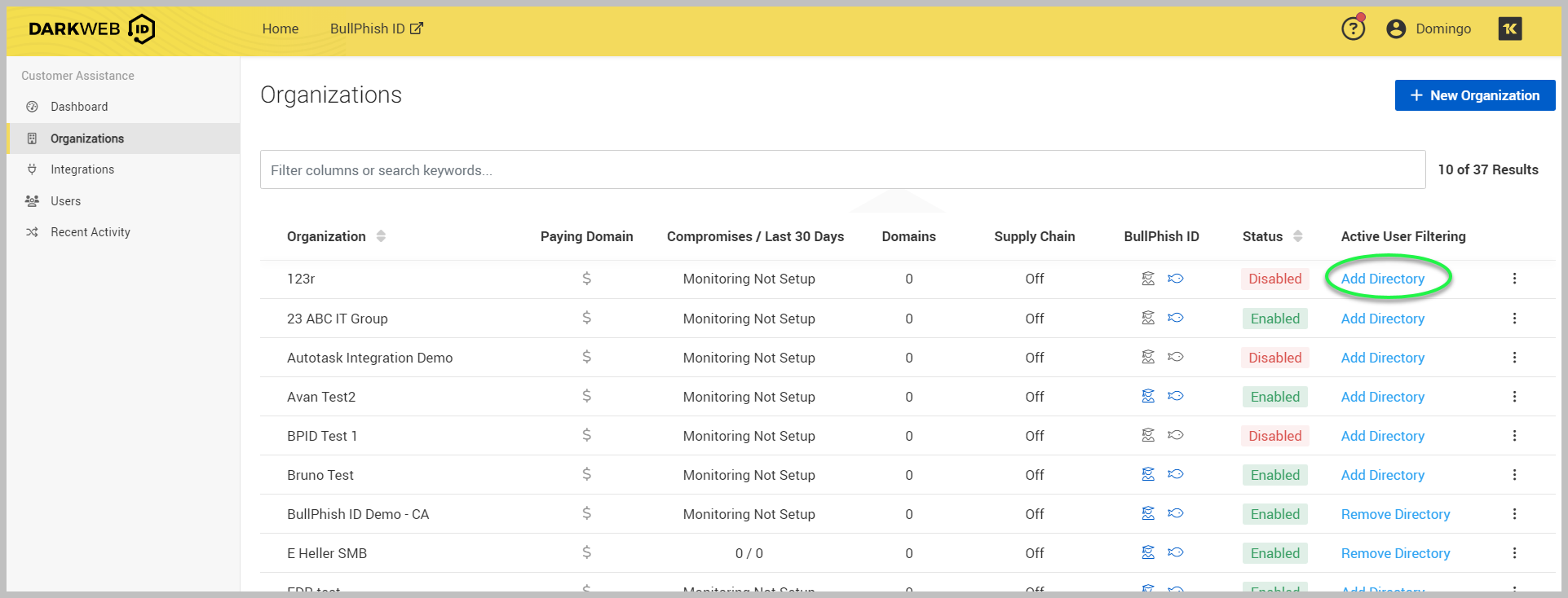
This directory can be defined using one of two methods:
-
CSV: You can create and upload a CSV file containing the list of email addresses that should be monitored. For detailed information, refer to Enabling active user filtering using a CSV file.
-
Microsoft Entra ID integration: A synchronization is established with Microsoft Entra ID, allowing administrators to select a specific group of active users to monitor. The list of users is automatically kept in sync with the group membership in Azure. For more information, refer to Enabling active user filtering with Microsoft Entra ID.
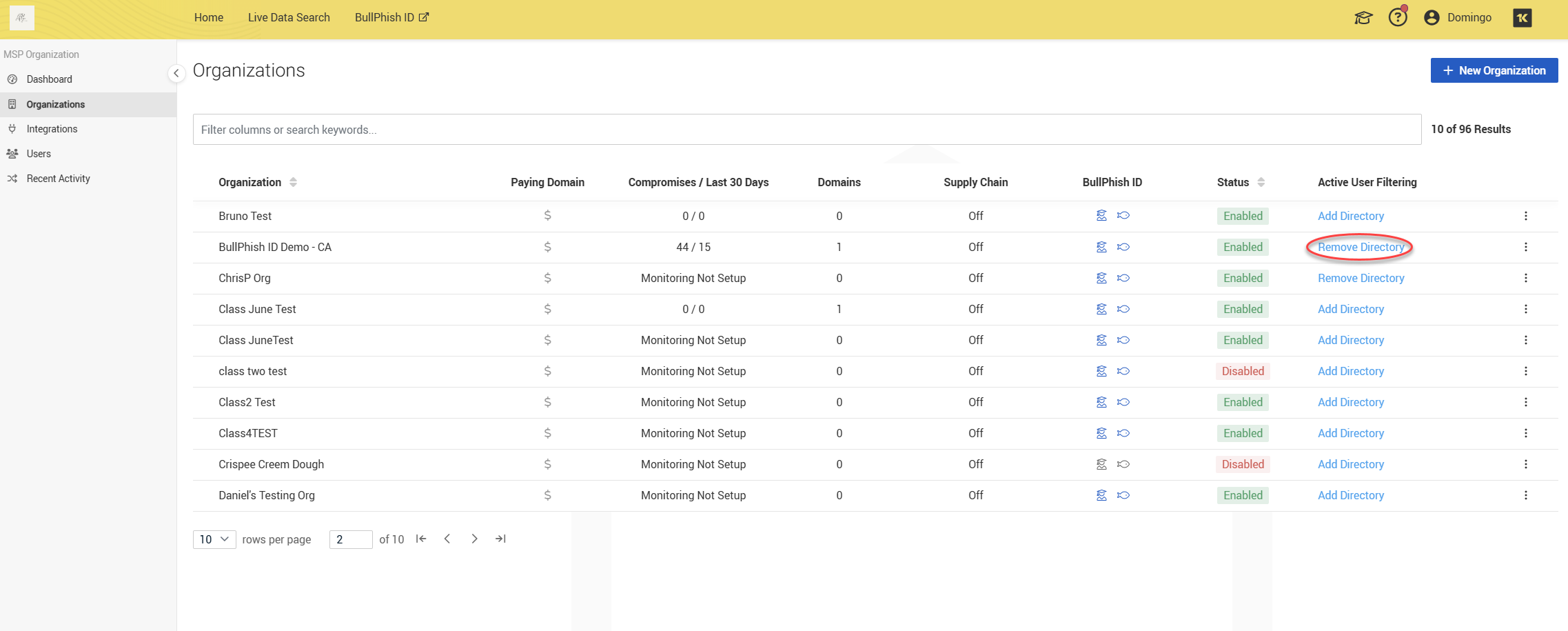
If desired, Active User Filtering can be disabled by clicking Remove Directory.
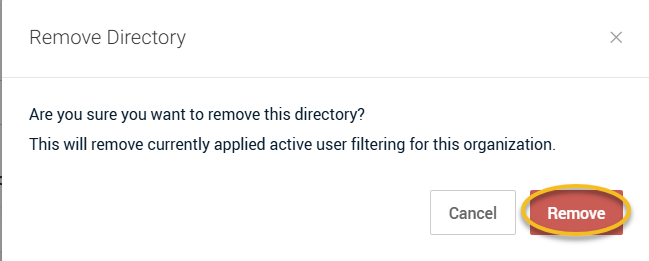
Once you click Remove, a modal window will appear. Click Remove or Cancel.